
VIEW / DOWNLOAD PDF VERSION
NOTE: MailSteward Pro users must install a MySQL server.
Download the MailSteward Pro manual (PDF) for instructions
INTRODUCTION
Have you ever wished you could find all those e-mails between you and your client Joe, say during August and September of last year that also include the word “contract?” Now you can — and you can sort them, print them, save them and export them in several standard formats. MailSteward elegantly solves your e-mail archiving, accessing and management problems.
E-mail clients like Apple’s macOS Mail application or Gmail are good at sending and receiving e-mail and doing simple searches but they are not really designed to efficiently and safely archive and access hundreds of thousands of e-mails.
For many of us, it’s not unusual to send and receive thousands of e-mails every month. Businesses and individuals with large volumes of important e-mail need to be able to
- safely archive e-mail text and attachments so that none of it is ever lost
- easily locate specific e-mails using any combination of sender, recipient, date range, keywords or tags
- export e-mail in standard formats to prevent data obsolescence
After installation and setting disk access permissions (see below) you’ll be presented with this window:
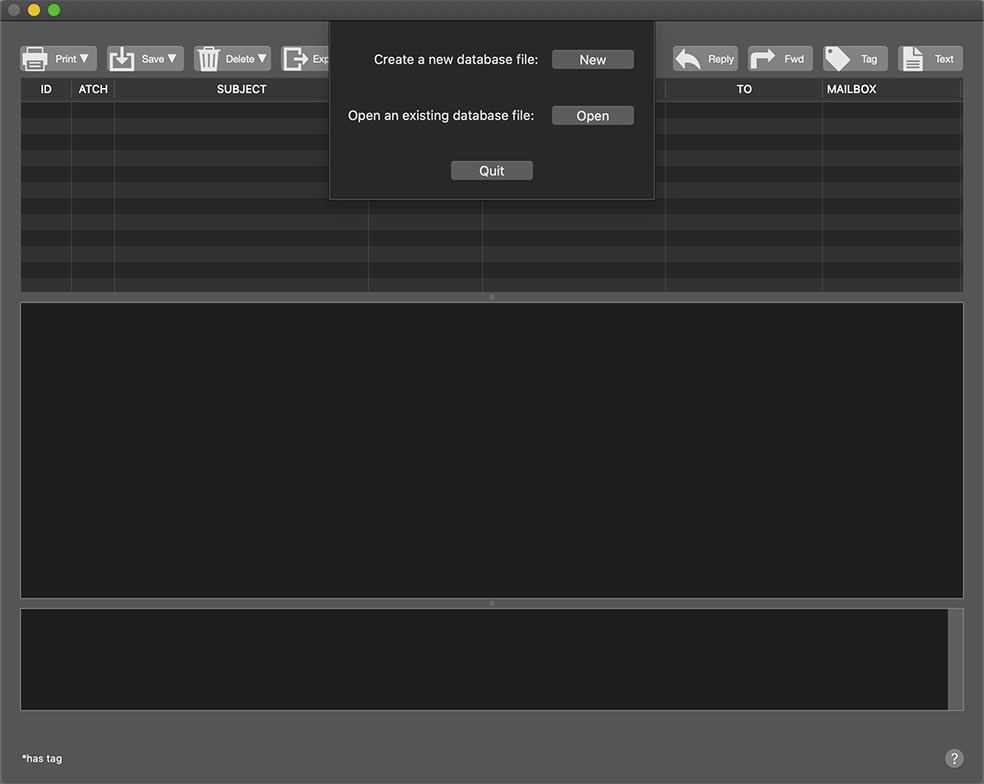
To get started, create a new database file. Name and locate the file wherever you wish (the default location is your Documents folder).
By default MailSteward will automatically select all of your Apple macOS Mail application e-mail accounts to be archived.
Then click on the Archive button and MailSteward will begin copying your e-mail into the database file that you previously created.
If you use Gmail instead of Apple Mail, you can periodically download your email from your online Gmail account and import it into your MailSteward database giving you both a local backup of all of your Gmail as well as access to MailSteward’s sophisticated search, tagging and other capabilities.
Any of the settings can be changed by clicking on the Settings button. The database file is a single file and can be named whatever you wish or located on any storage volume and if you copy it, move it or rename it, your e-mail files will remain intact.
You don’t have to worry about duplicates. If an e-mail is already in the database and you archive it again, MailSteward will skip it rather than add a new entry.
Once they have all been copied into the database, you can delete all or most of the e-mail from your In and Sent boxes, if you wish. MailSteward will archive the plain text, attachments, HTML, rich text and the original raw source of your e-mail.
Mail can be retrieved from the archive database by clicking on the Search button and specifying any combination of:
- a range of beginning and ending dates
- keywords or phrases in the From address
- keywords or phrases in the To address
- keywords or phrases in the Subject line
- keywords or phrases in the Body text
- text strings in the Mailbox name
- text strings in an attachment file name
- text inside attachments that contain text
- tags – category, keywords, notes and/or priority
If you know SQL, editing the generated SQL statement lets you sort the retrieved e-mails by:
- Date
- From
- To
- Subject
- Mailbox
- Unique ID assigned to every e-mail message
MailSteward features:
- Works seamlessly with macOS Mail app to archive all your e-mail in a relational database
- Will import most “mbox” format files exported from Gmail and other e-mail clients such as Microsoft Outlook
- Works with all locally-stored POP, iCloud and IMAP e-mail accounts
- Select e-mails from archive by date range and keywords in the To, From, Subject, Mailbox, Body fields, and tags
- Sort by date, To, From, Subject or unique ID
- Print e-mail list or individual e-mail or all e-mails in a list
- Save e-mail list or individual e-mail or all e-mails to a text file
- Save all the attachments of selected e-mails as separate files
- Reply-to or forward individual messages
- Search attachments such as word processing documents which contain text
- Schedule MailSteward to archive your e-mail automatically
- Export messages to tab-delimited text files, a new MailSteward database file, an mbox file or an SQL file
- Merge database files
- All macOS Mail e-mails and folders are undisturbed
- Options to store all attachments, attachments less than a given size or no attachments
- Native Mac application that supports macOS 11 through macOS 26
- Free trial versions of MailSteward are full-function but limited in capacity to 15,000 e-mails
SETTINGS
Clicking on the Settings button brings up the Settings window. When you launch MailSteward for the first time, default settings are in place. If you click on Archive, e-mail in all of the accounts you have in your macOS Mail application will be read into the database file that you created in the previous step. There are also default settings for a number of other options.
Settings are associated with particular database files. Each database file, if you have more than one, has its own settings. There are several different panels in the Settings window, which are described below. When any of the Settings has been changed, click on the Save Settings button to save the changes. You can also reset all of the Settings to the defaults by clicking on the Reset button and saving.
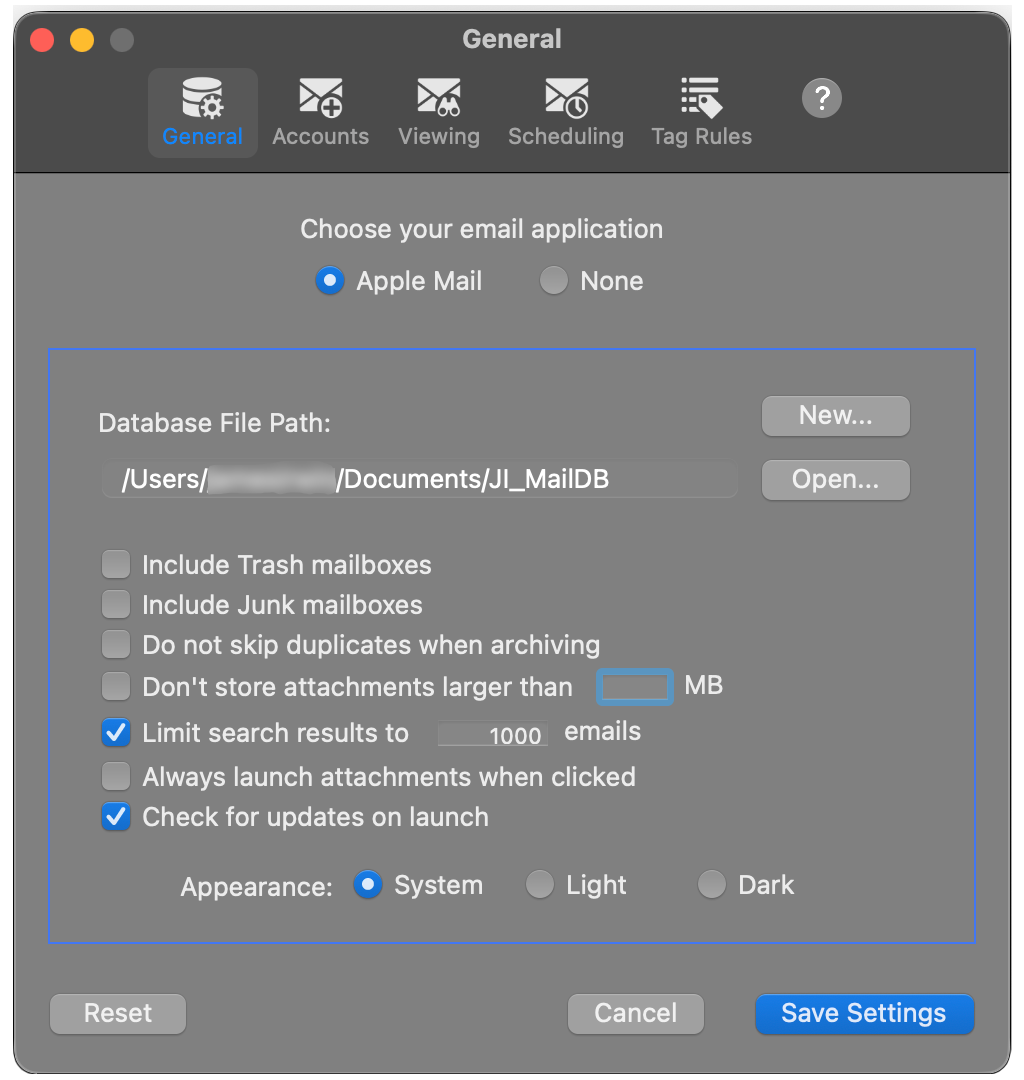
The General settings panel is where you can choose between the Apple Mail client or no e-mail client app and it’s also where you can open an existing database file or create a new one by clicking on the Open or New buttons.
The path and file name of the current database file is shown in the text box. There is an option to limit the size of archived attachments to some number of megabytes. There are also options to specify whether or not to include Trash and Junk mailboxes. Duplicate e-mails that are already in the database are skipped when archiving. If you don’t wish to skip duplicates, you can check the box that says “Do not skip duplicates when archiving.” You can also speed up searches and browsing by choosing to set an upper limit on the number of e-mails retrieved and you can choose to always launch attachments when they are clicked instead of being asked whether to launch them or save them as files. By default, MailSteward will automatically check for new versions. If you don’t want this you can uncheck the “Check for updates on launch” box, and you can always check for updates by choosing “Check for Updates…” from the MailSteward menu.
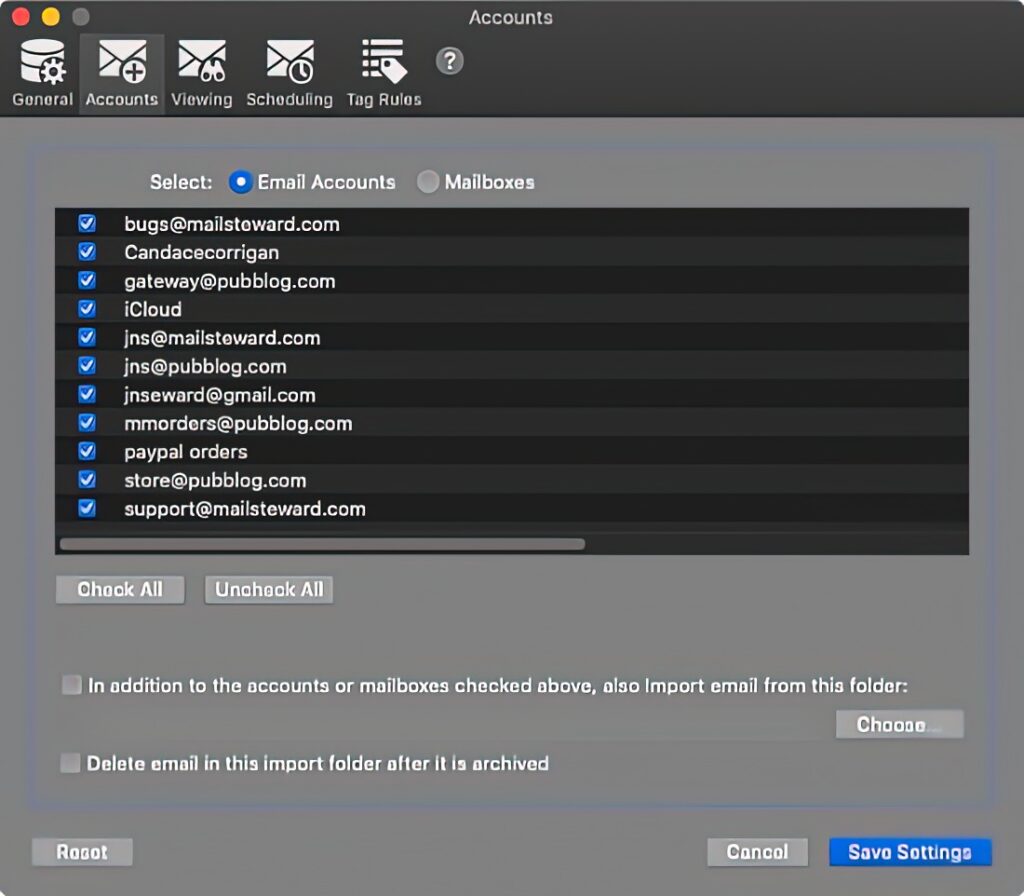
The Accounts panel allows you to select specific e-mail accounts or mailboxes you wish to archive. By default, all e-mail accounts are selected. You can choose whether to select accounts or select mailboxes. Be warned, if you choose mailboxes and you have a large number of mailboxes, it can take MailSteward awhile to find them all and populate the list. You select an account or mailbox by clicking on the check box next to it.
You may have to select mailboxes instead of accounts in the MailSteward settings to make sure you are archiving email that may have been moved into mailboxes other than In and Sent. This is especially true of some Gmail accounts, which are handled differently by Apple Mail.
You can also tell MailSteward to always archive any e-mail mbox files that are in a particular folder. MailSteward will then look for e-mail files in the specified folder and all of its subfolders and archive them in addition to the e-mail in the selected accounts or mailboxes. If the box is checked to “Delete e-mail in this import folder after it is archived,” then the e-mail files in the designated folder will be deleted once they have been archived. However, MailSteward never deletes e-mail held in the source Apple Mail app.
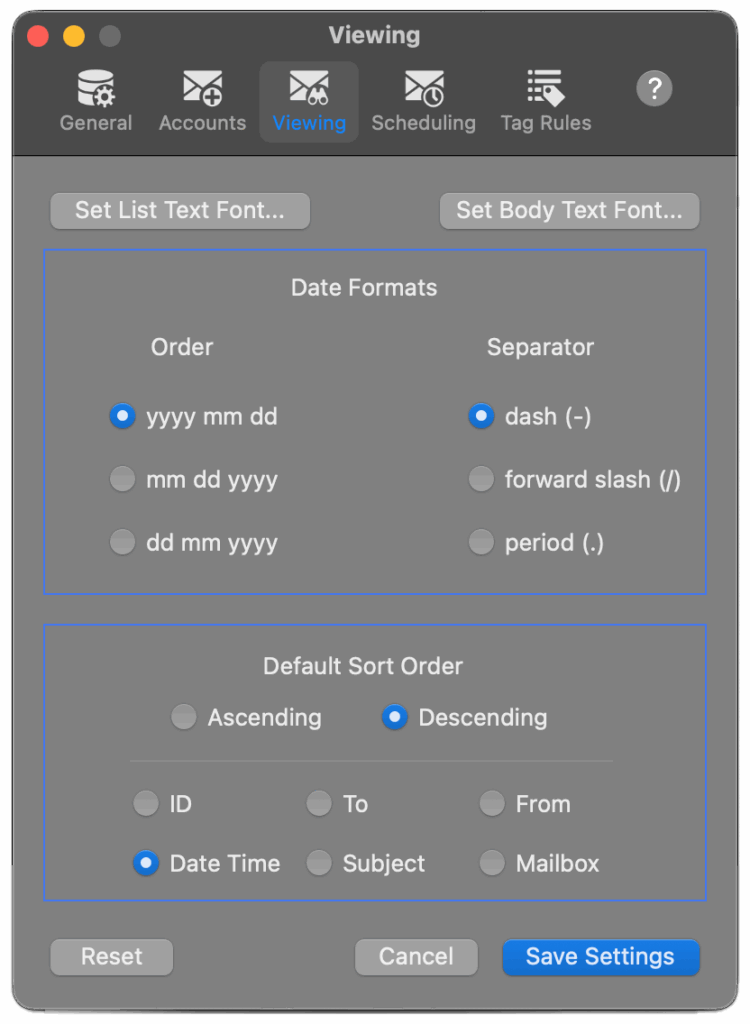
The Viewing panel lets you set the font and the date format to be used when displaying e-mail text. Click on the Set List Text Font… button to set the font for the list of e-mail search results. Click on the Set Body Text Font… to set the font for the body of the e-mail selected in the list. Any combination of year, month, day order and separator character (dash, forward slash, dot) can be chosen for the date format. You can also choose the default sorting order for Browse and Search results. Choose any one of the fields to sort by and whether the sort should be ascending or descending.
The Scheduling and Tag Rules Settings are explained in separate sections of this manual: Schedule Archive and Set Rules for Tagging.
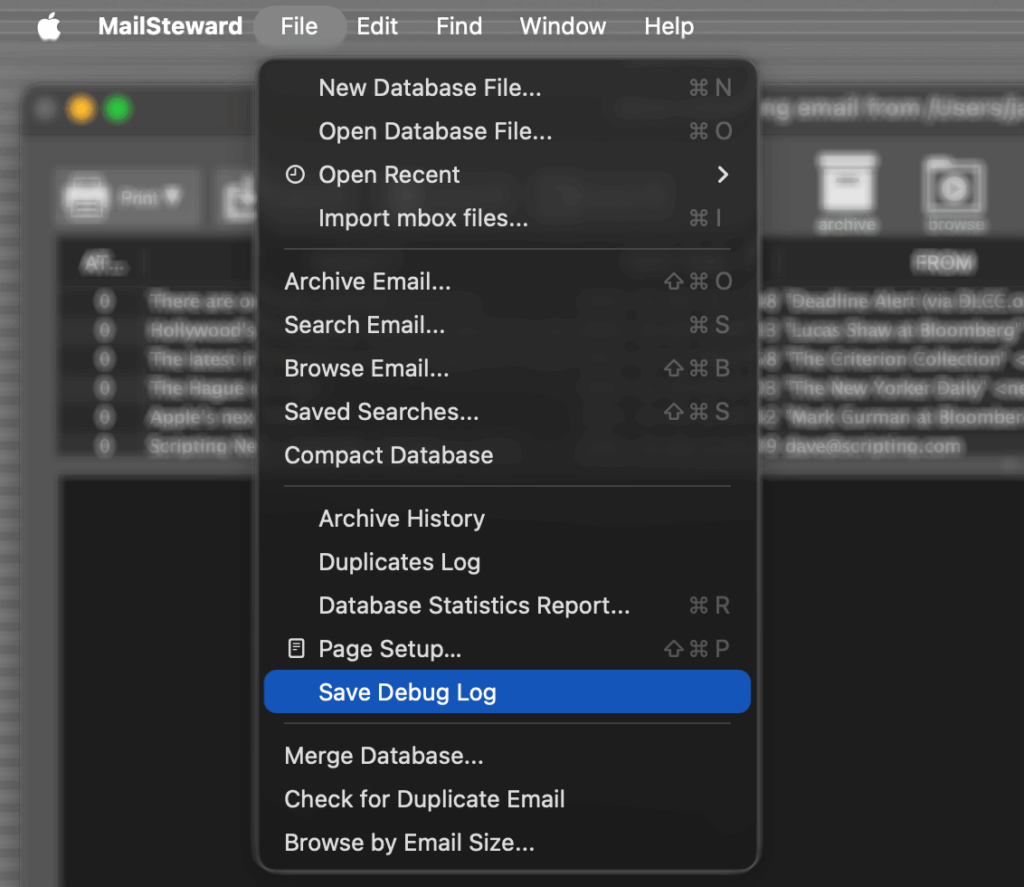
If the Save Debug Log menu item in the File menu is checked, a log file will be saved in the same folder as your database file with the same name as your database file with a “.log” extension. It will contain a list of processed e-mail files. If MailSteward should crash or be interrupted for any reason, the last file in the list will be the file that MailSteward was processing before it was stopped.
ARCHIVE E-MAIL
Click on the Archive button to bring up this sheet:
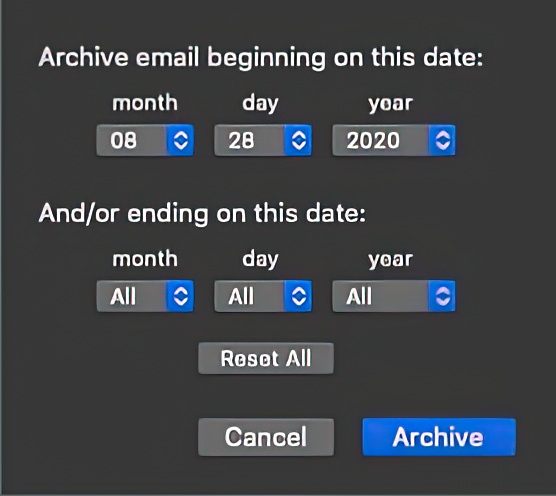
MailSteward will automatically set the beginning date to the date of the most recent e-mail archived in the database. Any e-mail prior to that date will be skipped. This will save time if you have already processed e-mail prior to a given date. Or you can set the date to “All” for month, day and year and MailSteward will process all of the e-mail in your account(s).
You can also set an ending date. This can be useful if you want to just store all of the e-mail prior to a specific date, say 2004. Clicking the Reset All button will reset the beginning and ending dates to “All”.
Once you have chosen a beginning date and/or ending date and clicked on the Archive button, MailSteward will process your locally stored e-mail and archive it into the database. If you have an Apple iCloud or other IMAP account, you must set the account options to keep copies of your e-mail on your local computer. MailSteward does not access e-mail on remote servers. Duplicate e-mail is automatically skipped. If an e-mail is already in the database, it is not archived. However, if the mailbox has changed or the e-mail tags have changed, they will be updated in the database.
While the e-mail is being archived, this window provides continuous feedback:
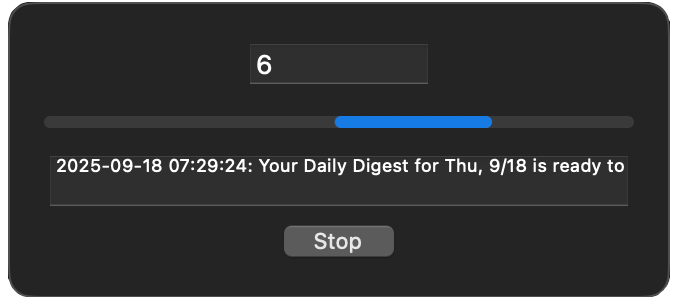
Clicking the Stop button will stop the Store operation and save all of the e-mail in the database that has been processed so far. It can take a litte while sometimes to finish processing, so don’t worry if it takes a little while for the Stop button to take effect.
When all of the e-mail has been archived in the database, a window will appear showing some stats about the e-mail that has been archived. This information will also be logged in the archive history file. You can view the archive history by choosing Archive History from the File menu.
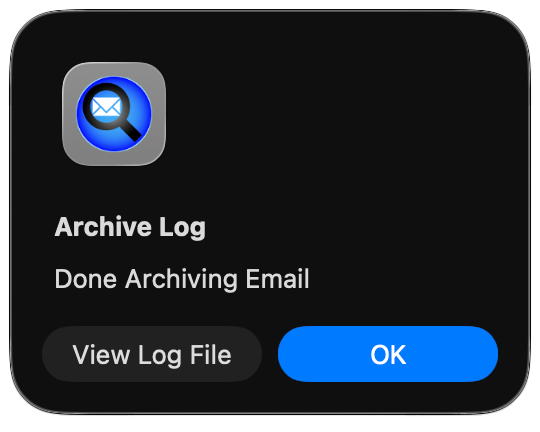
MailSteward will store the plain text, HTML, raw source and, optionally, the attachments of your e-mail. Once MailSteward has finished the archiving process, you can:
- Launch or save the attachments of individual e-mails
- Add tags to e-mail
- Reply to an e-mail
- Forward an e-mail
- Print the e-mail list
- Print the individual selected e-mail
- Print all the e-mail in the list
- Save the e-mail list
- Save the individual selected e-mail
- Save all the e-mail in the list
- Save the raw source of the selected e-mail
- Save the raw source of all the e-mail in a list
- Save the attachments in selected e-mails to separate files
- Delete the selected e-mail from the list
- Delete selected e-mail from the database and the list
- Delete all the e-mail in the list from the database
- Delete attachments of the selected e-mail in the list from the database
- View the raw source of the selected e-mail
- Export e-mail to a tab-delimited text file, a new MailSteward database file, an mbox file or an SQL file
If an e-mail has attachments or an HTML or enriched text version that has been saved in the database, a list of the attachments will appear at the bottom of the e-mail text as a blue, underlined link beneath the title ATTACHMENTS:
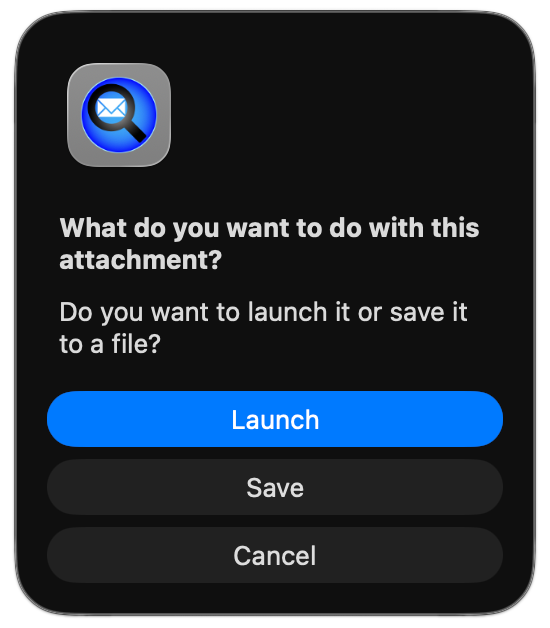
Clicking on the link of an attachment will allow you to open the attachment in its appropriate application or save it to a new location on disk. If an e-mail has both plain text and HTML versions, the plain text will appear in the body text panel and the HTML version will be listed as an attachment below in the attachments panel. Clicking on the link will cause the HTML version to be rendered and displayed in the body text panel, instead of the plain text. The number of attachments for each e-mail message appears in the ATCH column.
You can view the raw source of the selected e-mail by clicking on the Raw button in the upper right corner
You can also Search for e-mail in the database by any combination of date range, key words, and tags
SEARCHING E-MAIL
Once your e-mail is in the database, it can be retrieved by specifying any combination of:
- a range of beginning and ending dates
- keywords or phrases in the From address
- keywords or phrase in the To address
- keywords or phrase in the Subject line
- keywords or phrase in the Body text
- text strings in the Mailbox name
- text strings in an attachment file name
- text strings in attachment contents, if the attachment contains unencoded text
- text strings in the raw headings of the e-mail
- a text string anywhere in the e-mail in any of the fields
- tags – category, keywords, priority
- attachment types, such as graphics, documents, video, etc.
- by editing the SQL statement generated by MailSteward
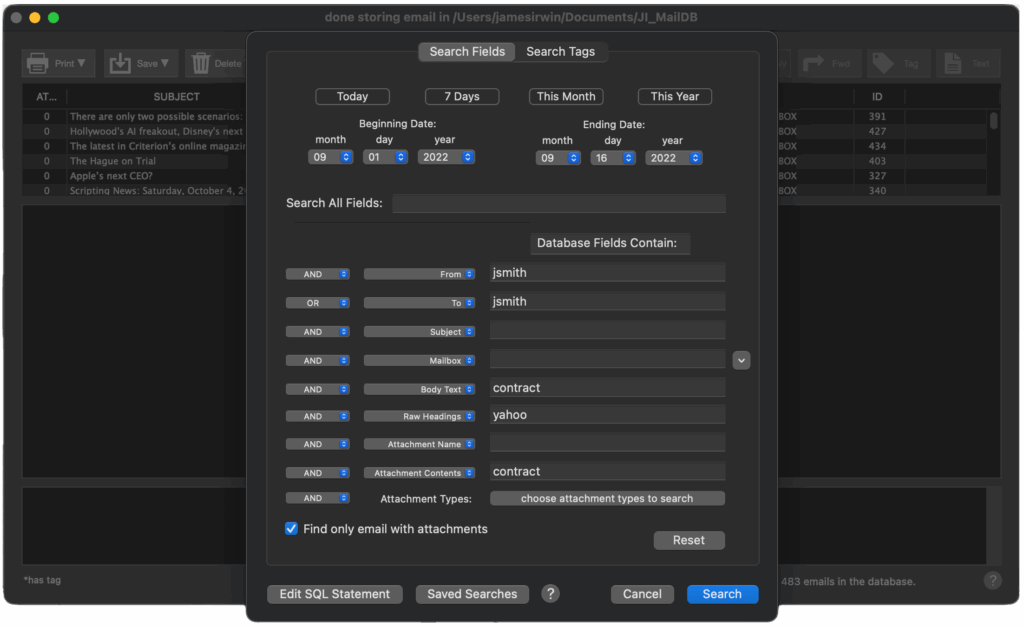
If the Find only e-mail with attachments check box is checked, then only e-mail with attachments will be retrieved. If an e-mail has attachments or an HTML or enriched text version that has been saved in the database, a list of the attachments will appear at the bottom of the e-mail text as a blue, underlined link beneath the title ATTACHMENTS
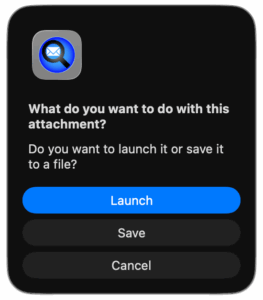
Clicking on the link of an attachment will allow you to launch the attachment using the default application for its file type or save a copy of the attachment to a new location.
If an e-mail has both plain text and HTML versions, the plain text will appear in the body text panel and the HTML version will be listed as an attachment below in the attachments panel. Clicking on the link will cause the HTML version to be rendered and displayed in the body text panel, instead of the plain text. The number of attachments for each e-mail appears in the ATCH column.
Binary attachments like graphics, Word documents or PDFs, are stored in their original binary format. Any attachments that contain text, such as Word documents, can be searched. However, text in PDF documents is encoded such that they cannot be searched.
The pulldown menu next to the mailbox field will display a list of all the unique mailboxes in the database. Selecting one of the mailboxes in the list will place it in the mailbox search field.
Clicking on the Reset button will set all of the search criteria back to the default.
Once the search is done and the e-mail has been retrieved, you can click on the header of any column to sort in ascending or descending order.
If you click on the Search List button you can refine your search by doing a search within the current search results list.
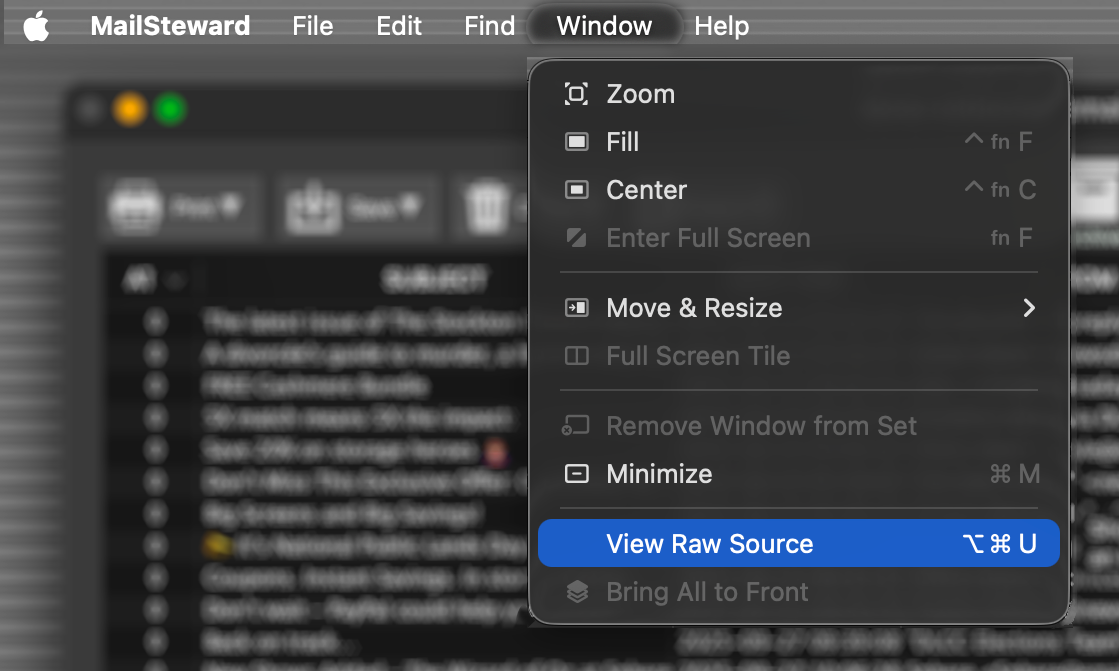
If you click View Raw Source in the Menu Bar > Window, a separate window will open containing the raw source of the selected e-mail with all its original header information.
Click on the Reply button to reply to a selected message. The macOS Mail application will be launched and a new mail window opened with the From, To, and Subject information filled in and the text of the message being replied to inserted in the body.
Each of the field label drop-down buttons can be changed to a different field label. So you can search for multiple keywords or phrases in the same field. You can also drop down the buttons to the left of the field labels to select AND, OR, AND NOT, or OR NOT.
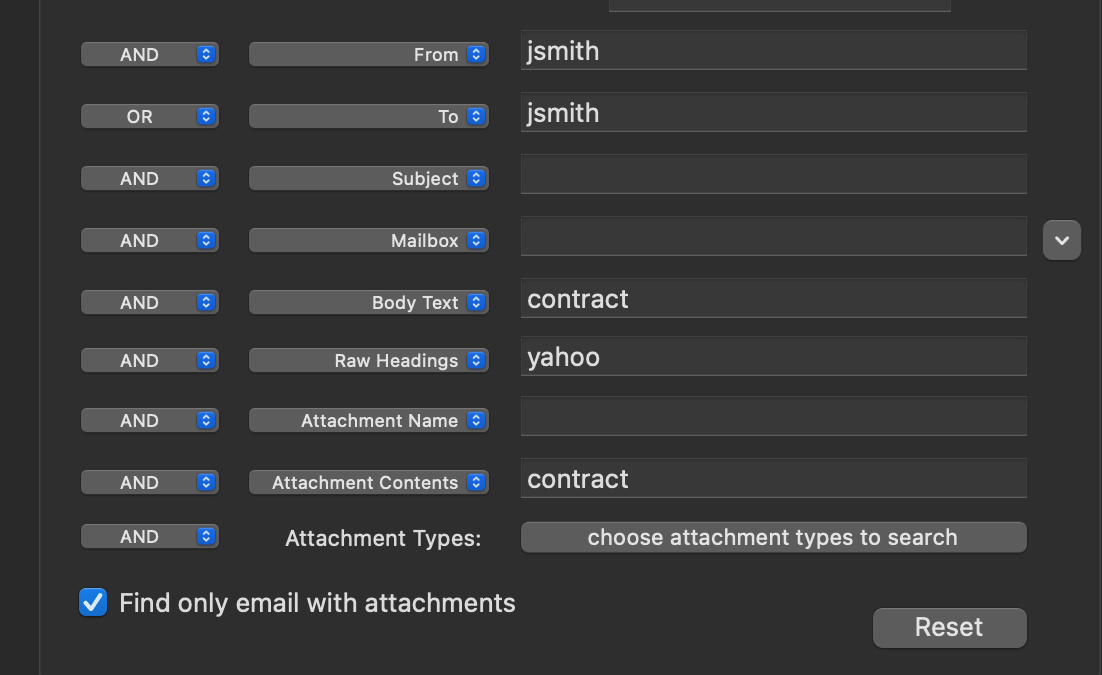
The above search criteria will generate an SQL statement that will return all of the e-mails either from or to Joe Smith that contain either the word “contract” or “proposal” in the body of the e-mail or the word “contract” in any attached documents. Also only e-mails with attachments will be retrieved.
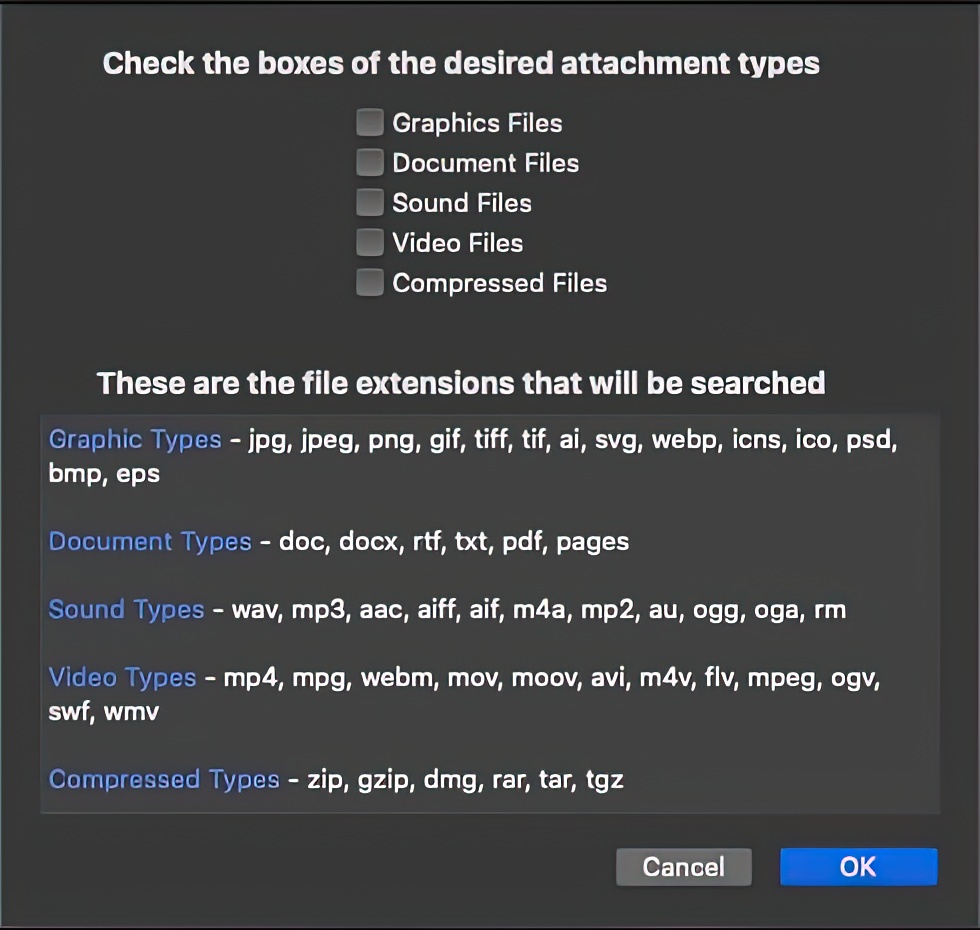
If you click on the choose attachment types to search button, a sheet will appear where you can specify attachment file types grouped as graphics, documents, sound, video and/or compressed (i.e. zip).
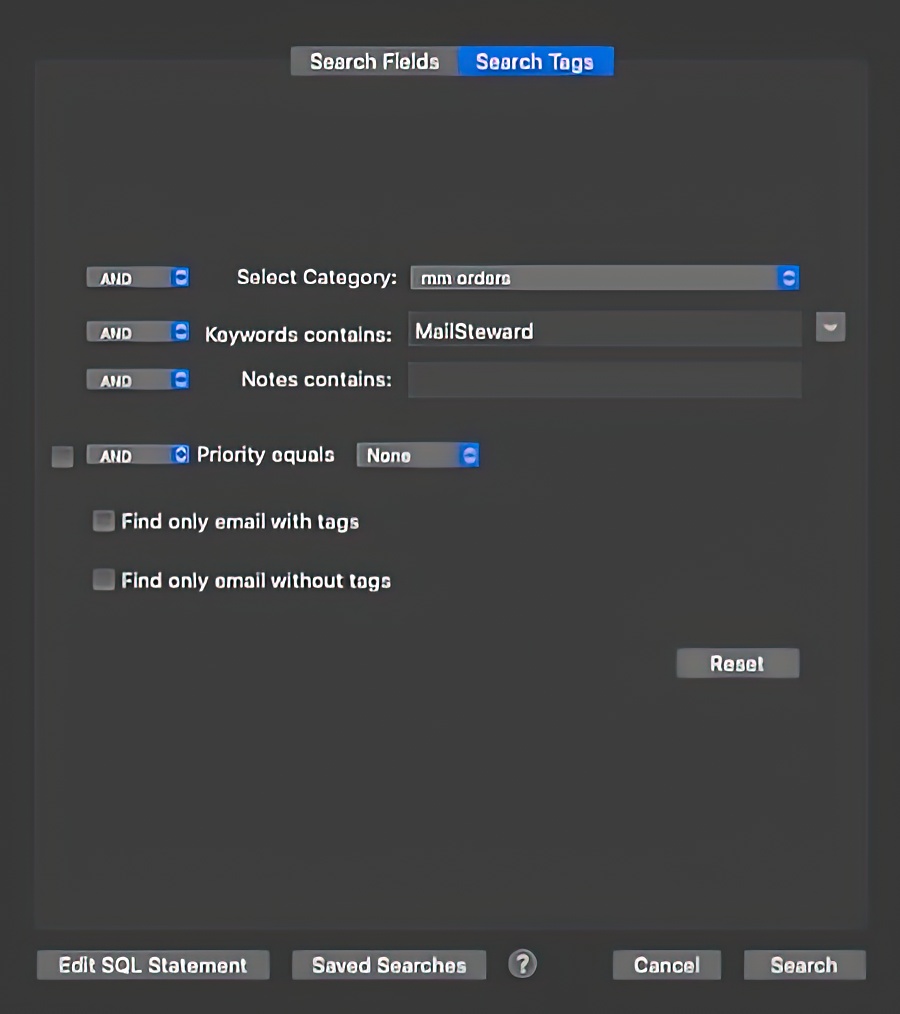
If you have tagged some of your e-mail, you can do a search based on your tags and you can also combine the two for a search which includes fields and tags. Clicking the pulldown menu next to the Keywords field will display a list of all the unique keywords in the database. Clicking on one of the keywords in the list will place it in the Keywords search field.
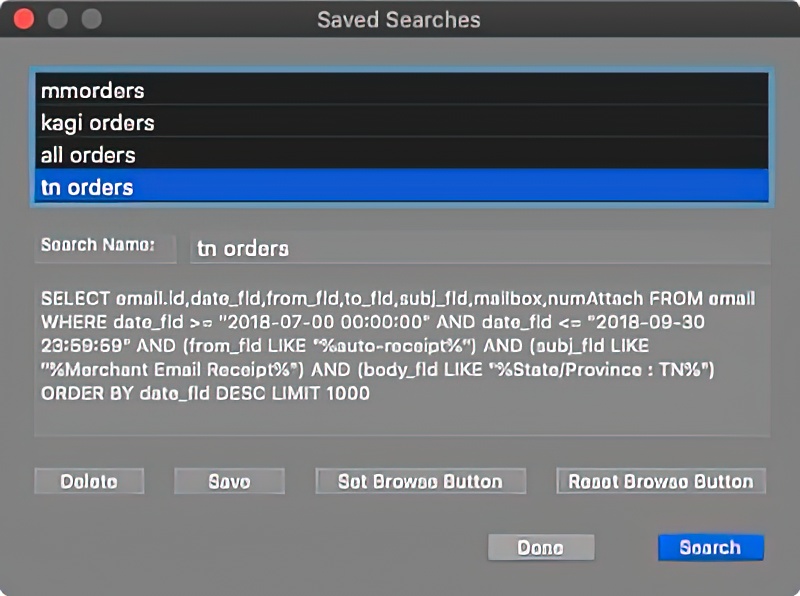
Clicking on the Saved Searches button brings up a window to let you save a set of search criteria or execute a previously saved search.
If you click on Set Browse Button, the currently selected saved search will be made the default for the Browse button. Whenever you click on the Browse button, this search will be executed instead of listing all of the e-mail in the database. If you click on Reset Browse Button, the default for the Browse Button will be reset back to listing all e-mail.
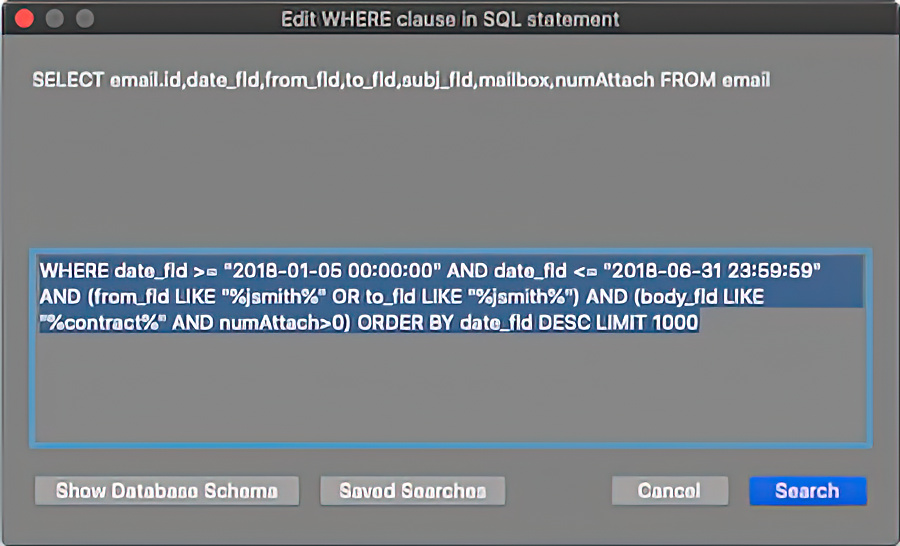
Clicking on the Edit SQL Statement button will bring up a window which allows you to add parentheses or NOTs or enter your own SQL. Clicking on the Show Database Schema button will display a complete list of the tables and field names in the MailSteward database structure.
BROWSING E-MAIL
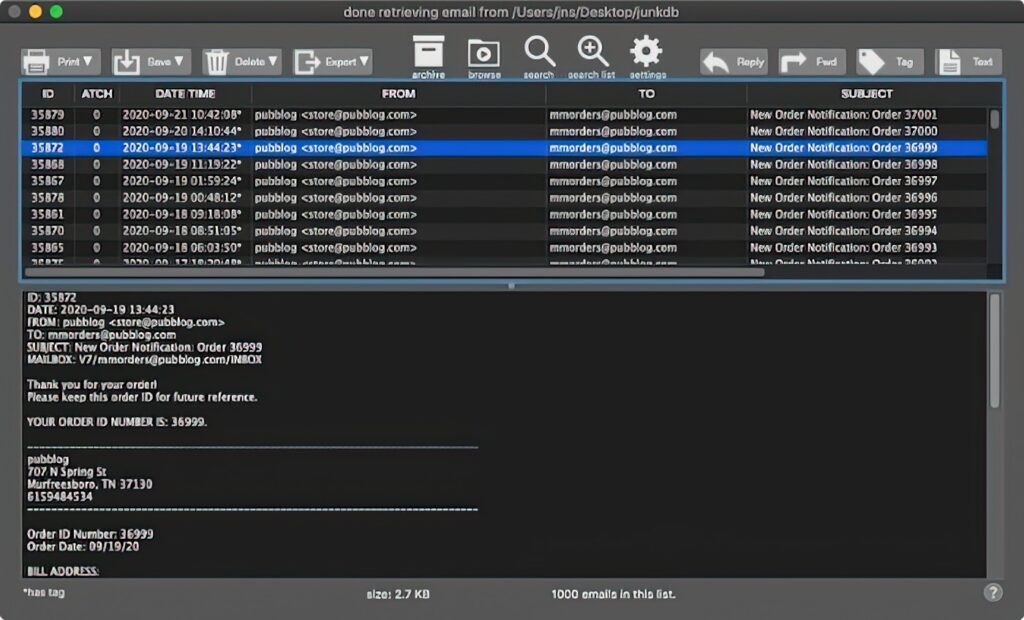
Clicking on the Browse button will retrieve all of the e-mail in the database sorted by date. It can then be sorted in any order by clicking the column headers. By default, the settings limit the search and browse results to 1,000 e-mails in order to speed up the process. However, you can choose to not limit the results, or to limit them by some number other than 1,000.
Click the Reply button to reply to a selected e-mail. The macOS Mail application will be launched and an e-mail message window opened with the From, To, and Subject information filled in and the text of the message being replied to inserted in the body. Clicking on the Fwd button will also launch the Mail app and open a new forwarded message window.
It is also possible to assign one of the saved searches to the Browse button. For example, you could specify a search that begins in the current year, save the search then assign that search to the Browse button so, when you browse, you only see this year’s e-mails rather than all of the e-mail in the database.
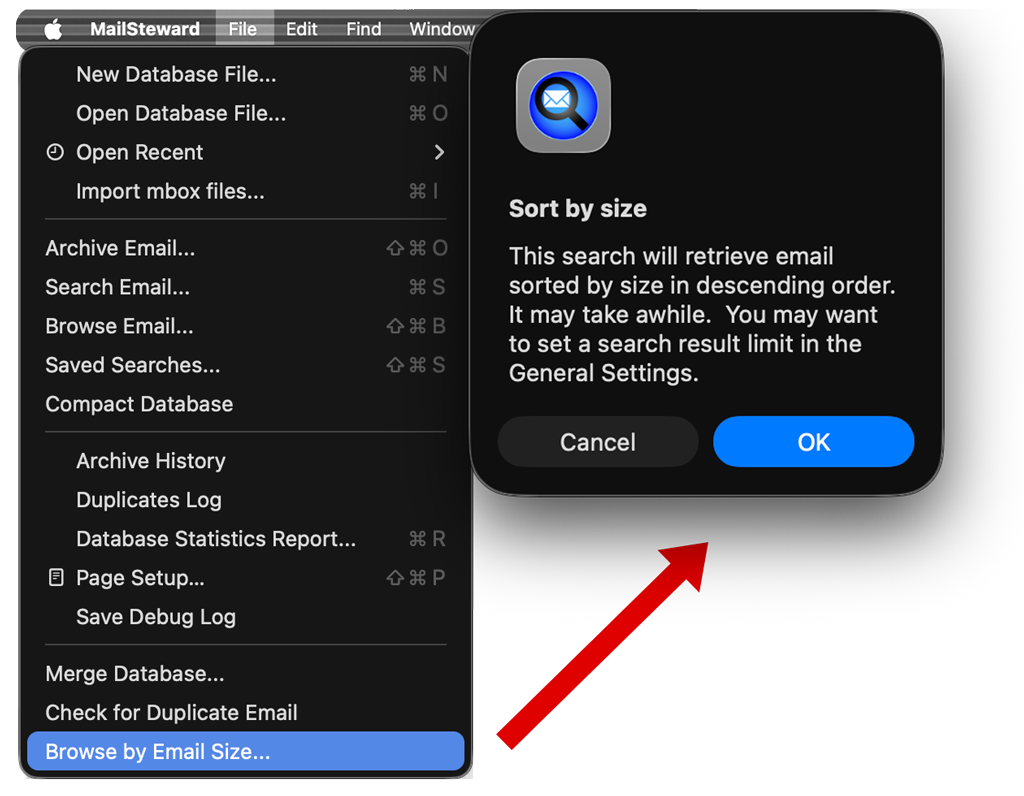
You can also browse by e-mail size and get a list of e-mail sorted by the size of the individual messages in descending order, largest first. Finding and sorting e-mail by size is somewhat slow, so you may want to set a maximum limit on search results in Settings > General.
BACKING UP GMAIL
MailSteward is a superb backup solution for your Gmail accounts. If you have connected your Gmail to your Apple Mail then MailSteward is already archiving those Gmail messages into your MailSteward database.
But, if you don’t use Apple Mail, you can still archive all of your Gmail into a MailSteward database and have not only the peace of mind of having a local backup of all of your Gmail but also access to all of MailSteward’s sophisticated search, tagging and other capabilities.
Here is how to download and import all of your Gmail into a MailSteward database.
- Go to takeout.google.com and login to your Gmail account.
- Deselect All to uncheck all the boxes
- Scroll down to Mail and check that box
- Click Next at the bottom of the page
- Click Download
Unzip the downloaded file. This will create a folder in your download folder named Takeout. Inside that folder will be another folder named Mail containing two mbox files named Inbox.mbox and Sent.mbox
In the MailSteward File menu, choose Import mbox Files… and select those two mbox files to be imported into your MailSteward database.
SCHEDULING ARCHIVES
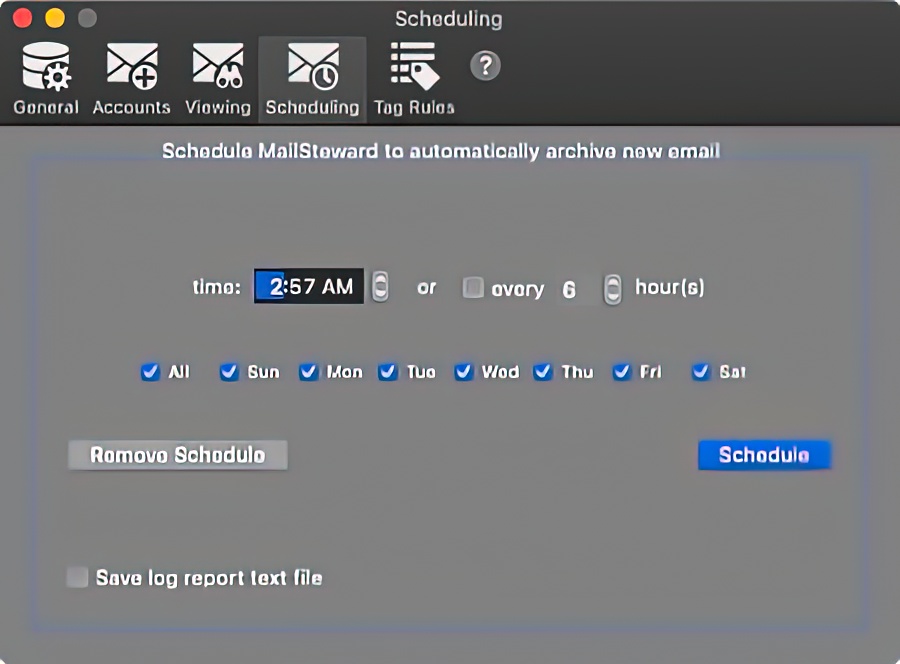
MailSteward can be set to automatically schedule an archive of recent e-mail. If you select the Scheduling panel in the MailSteward Settings, you can specify a schedule for automatically launching MailSteward to archive new e-mail. [NOTE: The scheduled instance will not launch if MailSteward is already running.] The schedule will launch MailSteward, archive all e-mail starting at the most recent date in the database and then it will quit MailSteward when the archive process has finished.
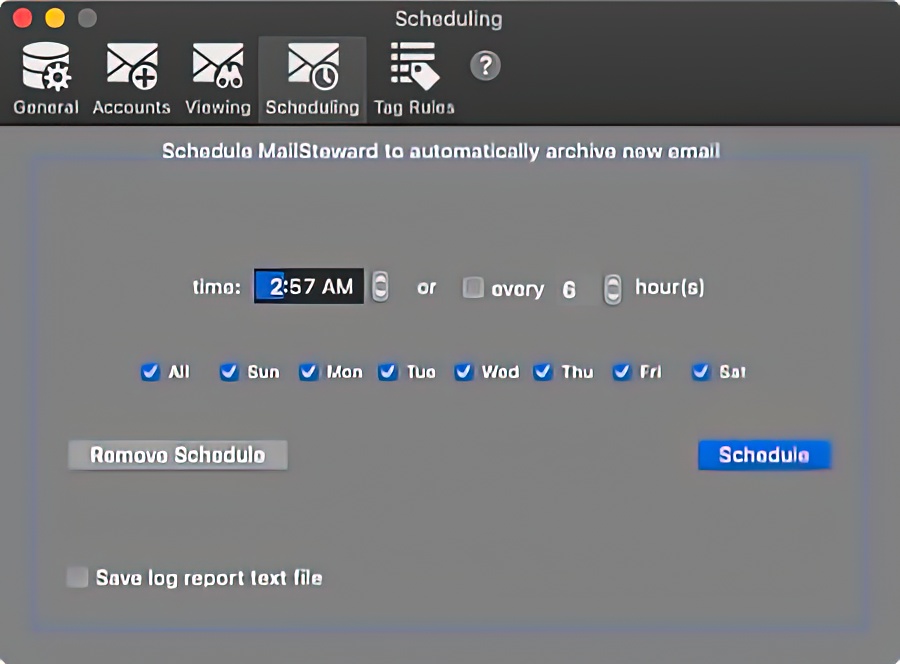
Archives can be scheduled either by days of the week or by months and days of the month. They can be scheduled for a specific time of day or every so many hours. After setting the scheduling options, clicking the Schedule button will put an entry into your crontab file, which will tell the operating system to run MailSteward at the specified time and dates. MailSteward will then automatically archive e-mail beginning on the date of the most recent e-mail in the database file. As always, duplicates will be skipped. The scheduling options can be changed at any time. Changing the options and clicking on the Schedule button will replace the MailSteward entry in the crontab file. Don’t forget to click on the Schedule button and don’t schedule so frequently that a new instance of MailSteward is launched before the previous one has quit.
If the Save log report text file option is checked, then a small text file with information about the completed archive will be created in the same folder as the database file, making it easy to see that the archive was done. If you don’t want the log file to appear, uncheck this box. You can always look at the archive history by choosing it from the File menu.
Clicking the Remove Schedule button will delete the existing MailSteward schedule.
ADDING, SEARCHING, VIEWING TAGS
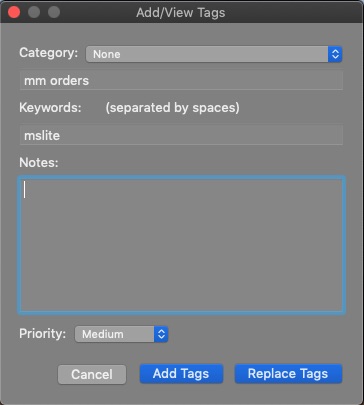
Clicking on the Tags button  in the upper right corner will bring up the Add/View Tags window (see below). If the currently selected e-mail has a tag, there will be an asterisk next to the date/time of that e-mail in the DATE TIME column and the tag for that e-mail will appear in the Add/View Tags window. You can then add or replace tags by entering your choices and clicking on the Add Tags or Replace Tags button. If multiple e-mails are selected, then they will all be tagged. You can remove a tag, or set of tags, by clearing out the text boxes, setting the priority to “None” and clicking on the Replace Tag button.
To see how searching with tags works, go to the Search e-mail topic.
You can define rules to automatically tag e-mail as it is archived, as explained in the Set Rules for Tagging section.
SET RULES FOR TAGGING OR EXCLUDING
Tags can be added to e-mail in the database at any time, but it is also possible to define rules to automatically tag e-mail as it is archived into the database. You can also define a rule to exclude e-mail from being archived. Once a rule is defined, it is listed in the Tag Rules Settings and can be enabled or disabled by checking the box next to it. By clicking on the right hand buttons you can add a new rule, edit an existing rule, duplicate an existing rule and remove an existing rule.
Clicking on the Add Rule, Edit or Duplicate buttons will drop down a sheet for defining a rule
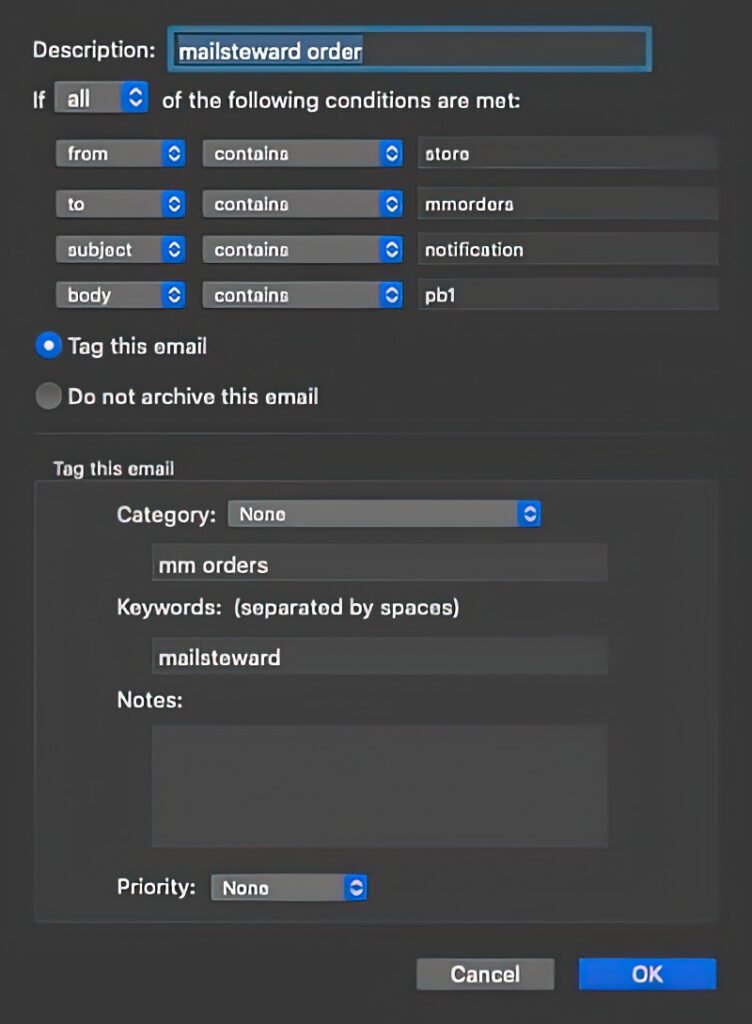
A rule may have up to four conditions. If the text box for a condition is left blank, that condition is ignored. A rule can require all of the conditions to be met or any one of them to be met, depending on whether “all” or “any” is chosen in the top popup button. Once the conditions have been set, you can choose to either tag e-mail or exclude e-mail from being archived, based on the rule. If you choose to tag the message, the tag category, keywords, note and priority can be defined. Clicking “OK” will add the rule to the list. As e-mail is archived into the database, it is checked against all active rules and tagged or excluded accordingly. As tag rules are checked, tag keywords are added, separated by spaces. The other tags are replaced by subsequent rules.
BACKING UP YOUR DATABASE
A MailSteward database is a single file like any other file and can be named and located anywhere you choose. Since it is a single file subject to loss or damage — as with any important file — it’s a good idea to maintain a backup. Because the database can become quite large if you have a lot of e-mail, you may want to exclude it from your Time Machine backups, as the entire file is copied by Time Machine every time it is changed when archiving new e-mail. Instead you can periodically make a copy of the file yourself so that if your database is ever damaged you can restore it from the backup.
EXPORTING FROM A MAILSTEWARD DATABASE
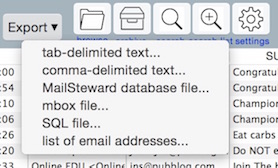
Any list of stored or retrieved e-mail can be exported to a tab- or comma-delimited text file or to a new MailSteward database file or to an “mbox” format file (which can then be imported into most e-mail clients) or to an SQL file that can be imported into a MySQL database. Or a list of all the From, To — or both — e-mail addresses can be exported. Just click on the Export drop-down button and select the desired export format. A tab/comma-delimited text file can then be imported into FileMaker or other database and spreadsheet applications. A MailSteward database file can then be accessed by MailSteward by specifying it in MailSteward > General Settings. An mbox file can be imported back into macOS Mail or Microsoft Entourage or other e-mail clients or back into MailSteward itself. An SQL file can be imported into MySQL. If the tab/comma-delimited text file option is chosen, attachments and tags are not exported. Only the plain text portion of the e-mail is exported. If the MailSteward database file option or the SQL option is chosen then everything will be exported, including any attachments and tags and copies of the e-mail raw source. In the case of the mbox format, everything will be exported except for the mailbox and tags. NOTE: The standard mbox e-mail format does not include support for tags or mailboxes.
FOR SQL DATABASE EXPERTS
Binary attachments are stored in the original binary format in MailSteward. The SQL generated by MailSteward will also cause the binary attachments to be stored in MySQL as binary blobs.
Here are the SQL statements used to create the MySQL database and the “email” and “attachments” and “origemail” and tags tables:
CREATE DATABASE IF NOT EXISTS [database name]; USE [database name];
CREATE TABLE IF NOT EXISTS email (id INTEGER PRIMARY KEY NOT NULL AUTO_INCREMENT,from_fld VARCHAR(255) NOT NULL DEFAULT ”,to_fld MEDIUMTEXT NOT NULL,subj_fld MEDIUMTEXT NOT NULL,date_fld datetime NOT NULL,mailbox varchar(255) NOT NULL DEFAULT ”,mailto varchar(127) NOT NULL DEFAULT ”,body_fld LONGTEXT NOT NULL,numAttach INTEGER NOT NULL DEFAULT 0,attachNames mediumtext NOT NULL,attachText mediumtext NOT NULL,headings MEDIUMTEXT NOT NULL,INDEX dateIndex (date_fld));
CREATE TABLE IF NOT EXISTS attachments (id INT NOT NULL,type_fld varchar(127) NOT NULL DEFAULT ”,filename_fld varchar(127) NOT NULL DEFAULT ”,encode_fld INT default 0,attach_fld LONGBLOB NOT NULL,INDEX idIndex (id));
CREATE TABLE IF NOT EXISTS origemail (id INTEGER PRIMARY KEY,orig_fld LONGBLOB NOT NULL);
CREATE TABLE IF NOT EXISTS tags (id INTEGER PRIMARY KEY,cat_fld varchar(127) NOT NULL DEFAULT ”,key_fld varchar(127) NOT NULL DEFAULT ”,priority_fld INT DEFAULT 0,notes_fld mediumtext NOT NULL);
IMPORTING MBOX FILES
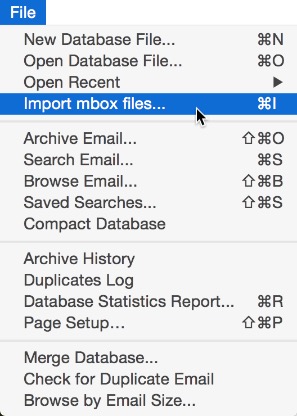
The Microsoft Entourage X e-mail client uses a proprietary database to store e-mail. However if you drag a mailbox from Entourage onto your desktop or into a folder, Entourage will export the dragged mailbox as a standard format UNIX mbox file that MailSteward can understand. Entourage only converts the e-mail at the top level of any folder that you drag. It doesn’t convert any e-mail contained in subfolders. Each subfolder has to be dragged individually. Most other e-mail clients also can export mbox files. Mbox files that have been created in this way can be read into your MailSteward e-mail archive by selecting Import mbox files… from the File menu. Also, in the MailSteward Settings, you can specify a folder that contains mbox files, that you want to be imported whenever you do an Archive.
To export e-mail from Outlook 2011 in a format that can be imported into MailSteward, perform an Edit > Select All in the folder or Inbox you wish to Export. Click & hold the mouse until you see the number count come up on the cursor. Then move the cursor over a Finder folder window and release the mouse. Wait while Outlook locks up & churns from exporting the e-mails. There will be no progress bar. This will fill the folder with .eml files of all the e-mails. The .eml files can then be imported into MailSteward by selecting Import mbox files… from the File menu.
Eudora mailboxes are also in an mbox format that can be imported into MailSteward. Eudora mailboxes are usually found in the ~/Documents/Eudora Folder/Mail Folder directory. If you are importing a Eudora mailbox, do not move or copy it to a different directory. MailSteward depends on the Eudora folder hierarchy to correctly process Eudora e-mail files.
There is a problem with Eudora e-mail attachments. Eudora removes the attachments from the e-mail and stores them in a separate folder and puts a reference to them into the mbox file that it generates. The reference to the attachment does not say where the attachment is located. Its location is something known to Eudora, but is not defined in the mbox file itself. With a simple default Eudora folder hierarchy, MailSteward will find the attachments but, with a more complicated folder hierarchy, MailSteward is sometimes unable to find the attachments. The mail will be successfully imported but the links to the attachments will not always be viable.
CHECKING FOR DUPLICATE E-MAIL
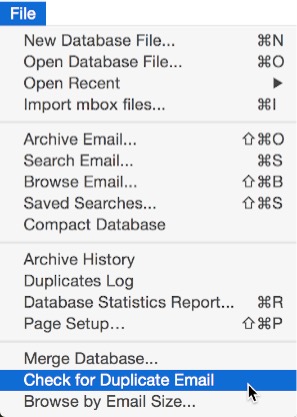
As e-mail is archived into the database, MailSteward will automatically skip duplicates. An e-mail is considered a duplicate if there is an exact match on the From, To, Date and Time, and the first 500 characters of the body, with an e-mail that is already in the database. This will work most of the time but sometimes a duplicate e-mail will get through. It is also possible that some duplicates may have got into the database because of changes in previous versions of MailSteward.
Duplicate e-mails that are skipped during an archive are logged in the “Duplicates Log.” Click on Duplicates Log in the File menu to view the list of logged duplicates.
You can check for duplicates in the database by clicking on the “Check for Duplicate E-mail” item in the File menu. MailSteward will then go through the entire database and look for e-mail that has an exact match on the From, To, Date, minutes, seconds and Subject. It does not match on the hour in case some e-mail was archived in different time zones and it does not match on the body but it does look for a match on the subject.
The duplicate e-mail will then be listed in the Browser window where it can be examined and deleted.
DATABASE STATISTICS REPORT
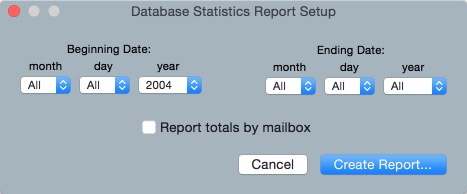
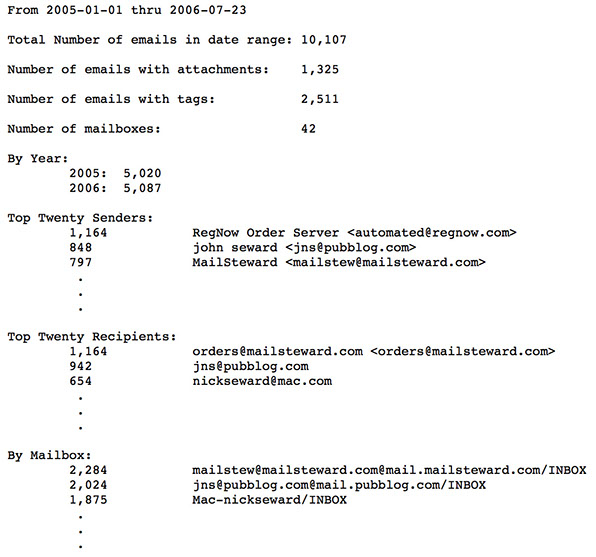
Clicking on the Database Statistics Report… item in the File menu will bring up the following Settings window. Clicking on Create Report will produce a report like this:
MERGING DATABASE FILES
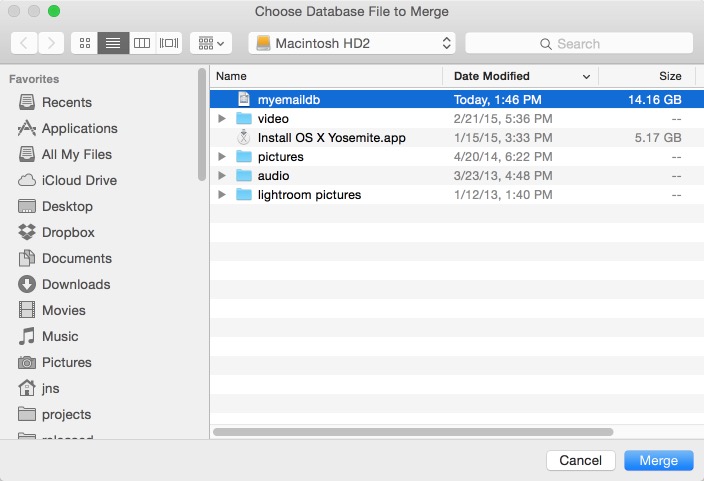
Clicking on the Merge Database… item in the File menu brings up a standard Open dialog to choose a MailSteward database file that you want to merge with the current database file. This can be useful if, for example, you have one database file on your desktop computer and a different one on your laptop. You can periodically merge the laptop data into your desktop database file. If there are duplicates, the email in the current database file is retained, rather than being replaced by the database being merged into the current database.
COMPACTING A DATABASE
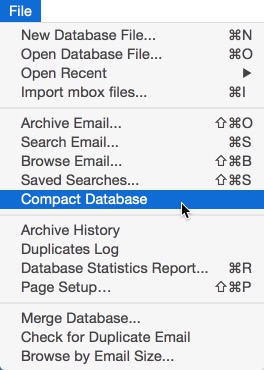
As e-mail is archived and then deleted, empty records are created in the database. This doesn’t hurt anything, but it does make the database file larger than it needs to be. The empty space can be reclaimed by selecting Compact Database from the File menu. This will remove all of the empty records and compact the database. The compacting is done in place, so it is a good idea to always make a backup copy of the database file before compacting the database.
Another way to compact the database is to do a browse, listing all of the e-mail in the database, and then click on the Export button and choose MailSteward database file… from the dropdown menu. This will create a new database file with all of the empty space removed.
SYSTEM REQUIREMENTS & PERMISSIONS SETTINGS
You need a Macintosh running macOS 10.15 or greater (Big Sur, Monterey, Ventura, Sonoma), using either the standard Apple Mail application.
MailSteward will automatically list all of your e-mail accounts or mailboxes in the Settings dialog. Or, if you are using Microsoft Entourage X, you will need to drag your Entourage mailboxes onto your desktop or into a folder, then import the resulting mbox files into MailSteward by selecting the Import mbox files… item from MailSteward’s File menu. Other e-mail clients also have the ability to export mbox or .eml files. MailSteward supports POP, iCloud, and IMAP e-mail accounts that are stored locally on your computer. The free version of MailSteward has full functionality but is limited to a capacity of 15,000 e-mails.
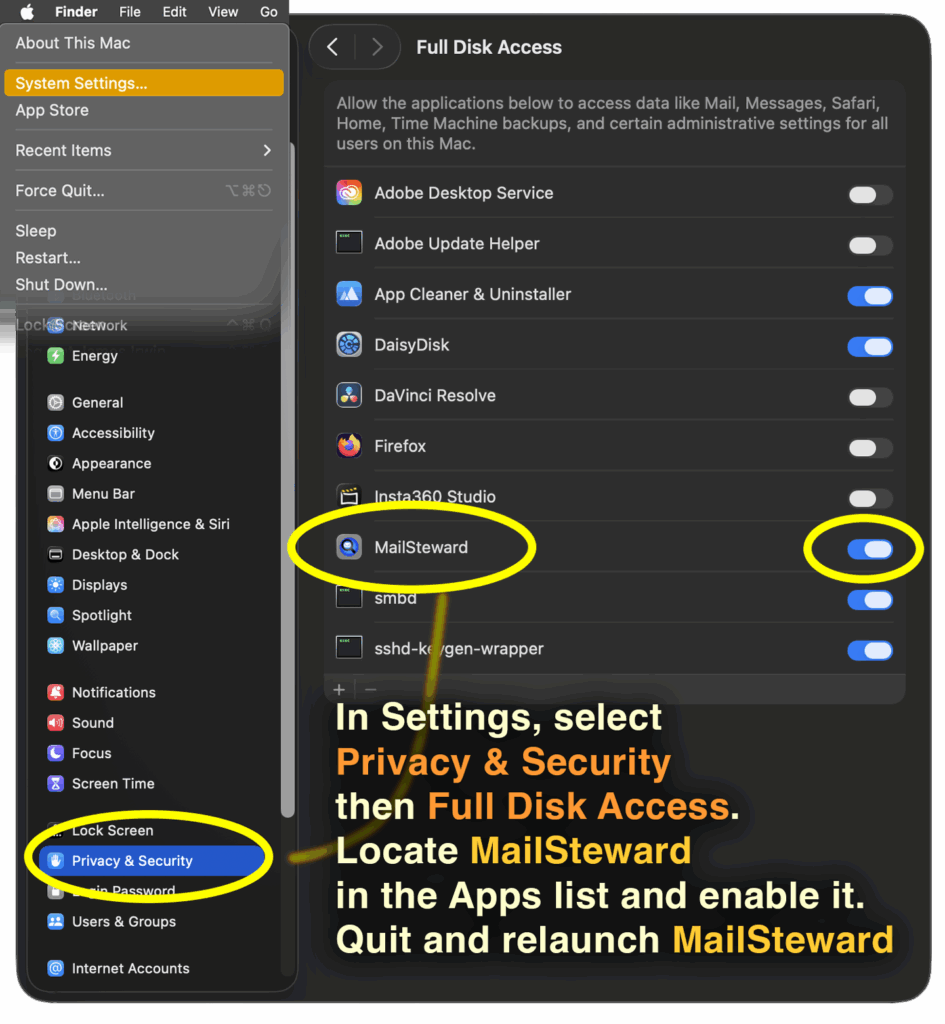
You will need to do the following to give MailSteward permission to access your boot drive:
1) In Finder menu bar go to: Apple icon > System Settings > Privacy & Security
2) Click Privacy and Security and scroll to Full Disk Access
3) Locate MailSteward in the applications list
4) Toggle (enable) the setting
5) Relaunch MailSteward